
PDFs
Read, write on and comment on PDFs.
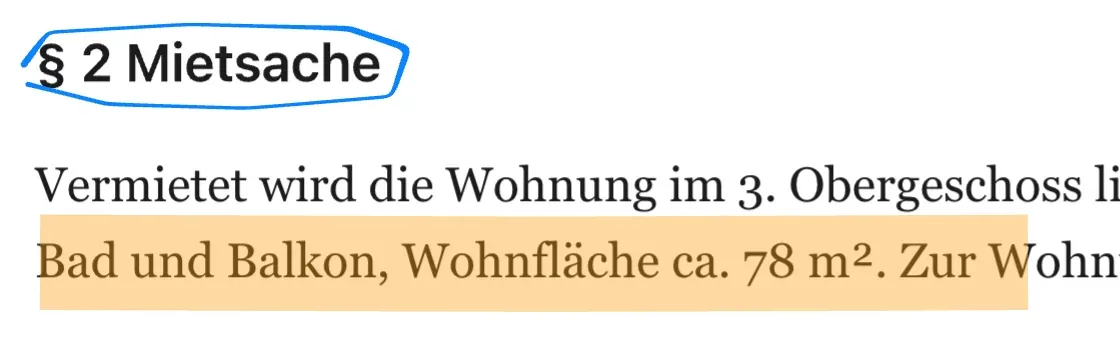
Lecture notes, contracts or papers: upload them and work right on them – with pen, highlighter and comments, Apple Pencil included. The original stays untouched.

PDFs you can write on
Read, highlight, collect your thoughts.
Upload lecture notes, contracts or papers and work right on them: pen, highlighter, eraser, comments.

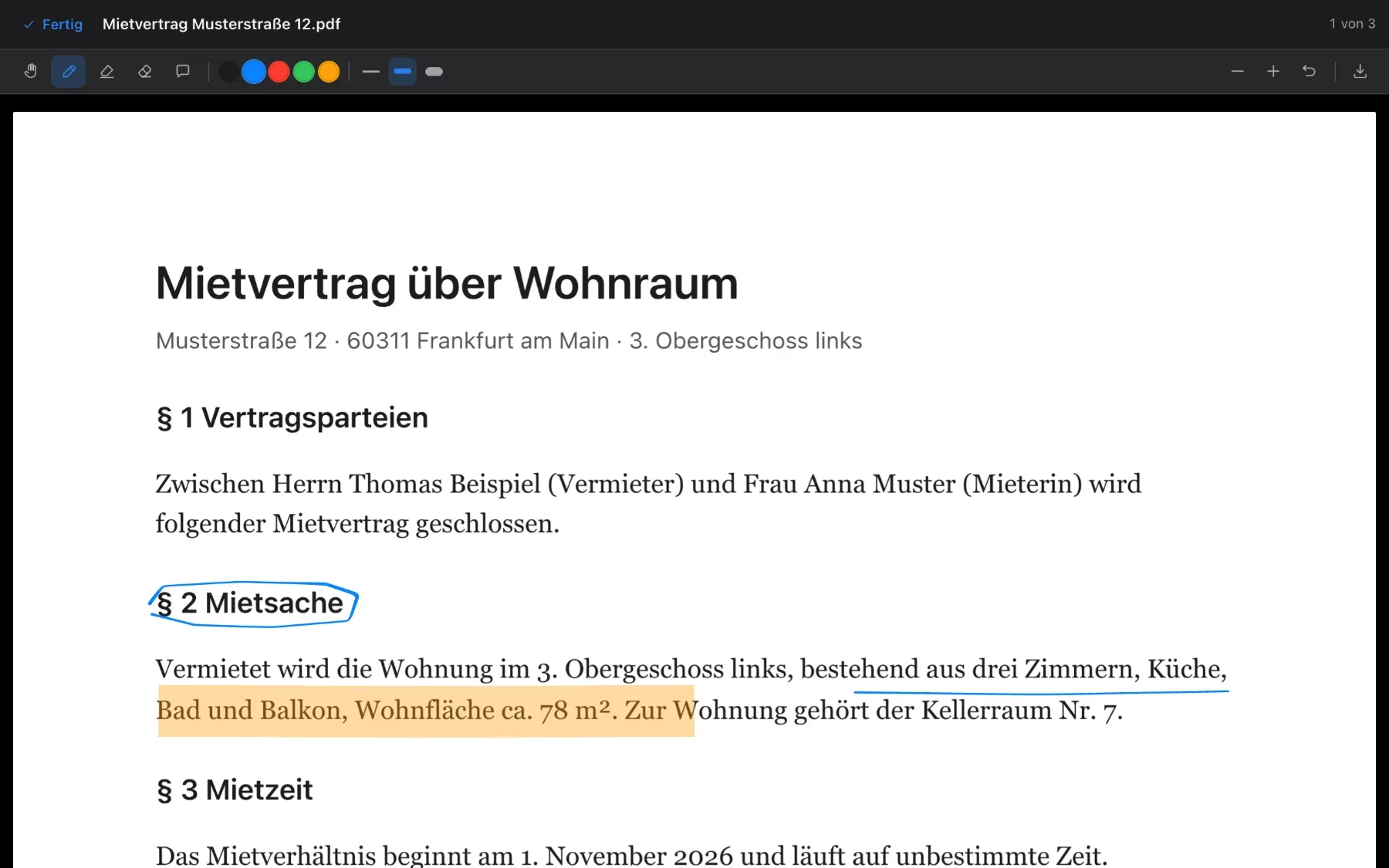
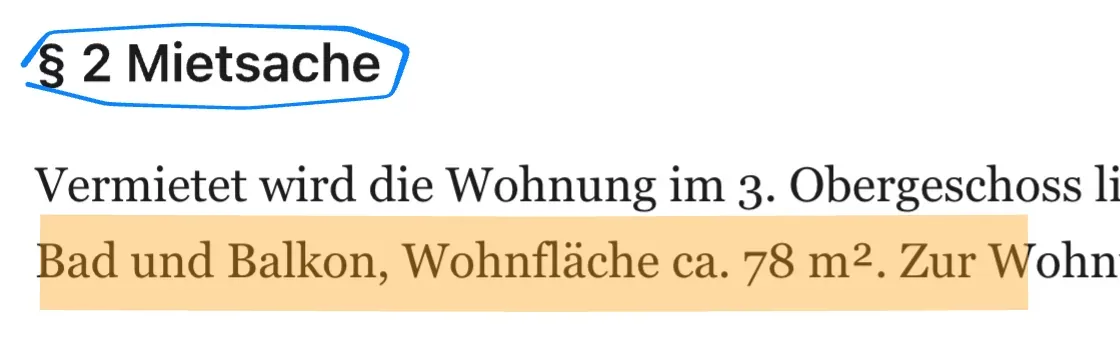
- Penin several colours and stroke widths
- Highlightertranslucent over the text
- Eraserremoves whole strokes with one tap
- Commentpins a small note to a spot on the page
Notes on a PDF
Thoughts on the page – collected in one note.
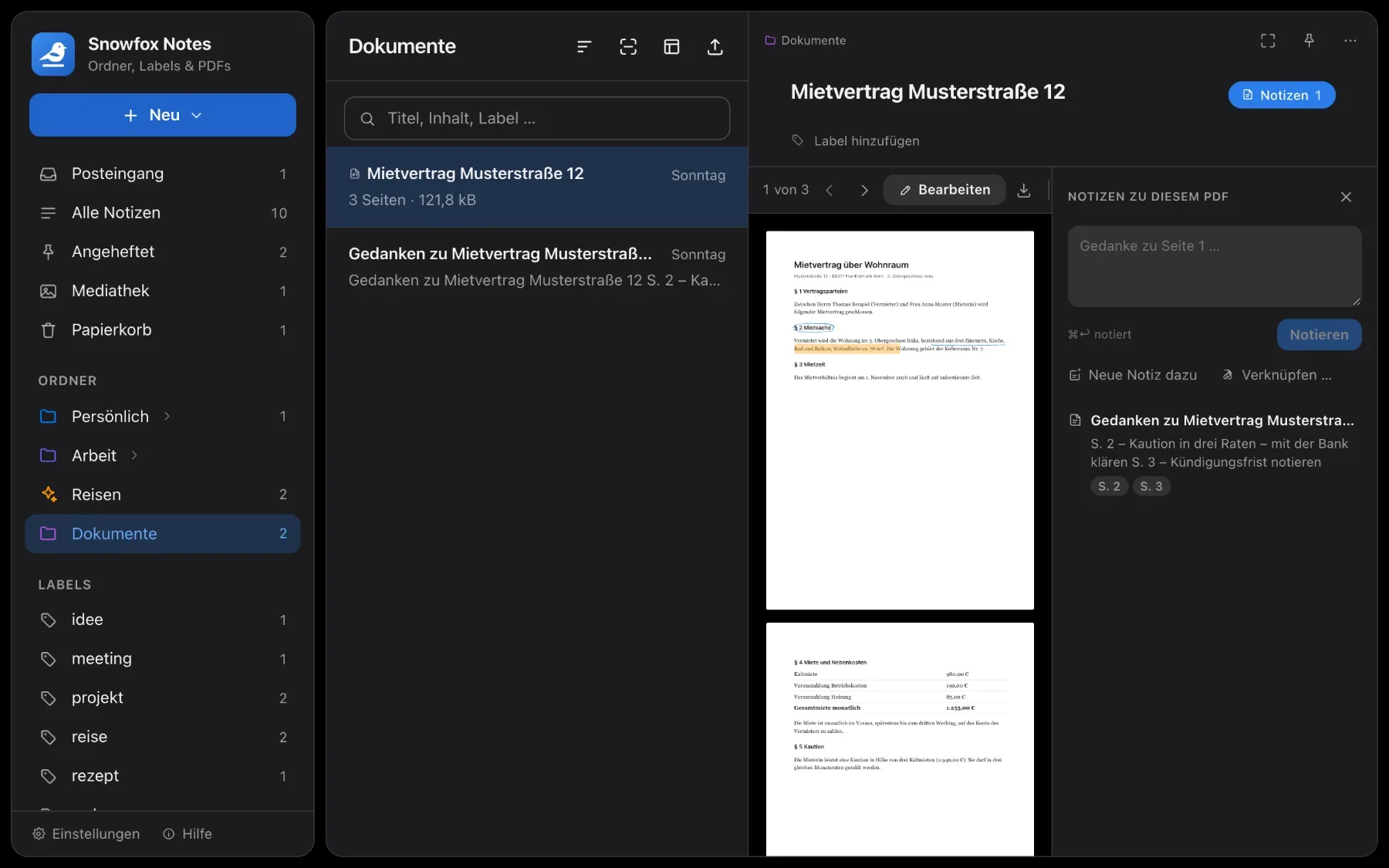
Next to the PDF sits the “Notes on this PDF” panel. Type a thought on the visible page into the quick field – all your thoughts are collected, with page numbers, in a companion note.
- “New note on this” creates a note that already links to the PDF and page
- “Link …” adds a link to the PDF to an existing note
- Page buttons such as “p. 2” jump straight to that page
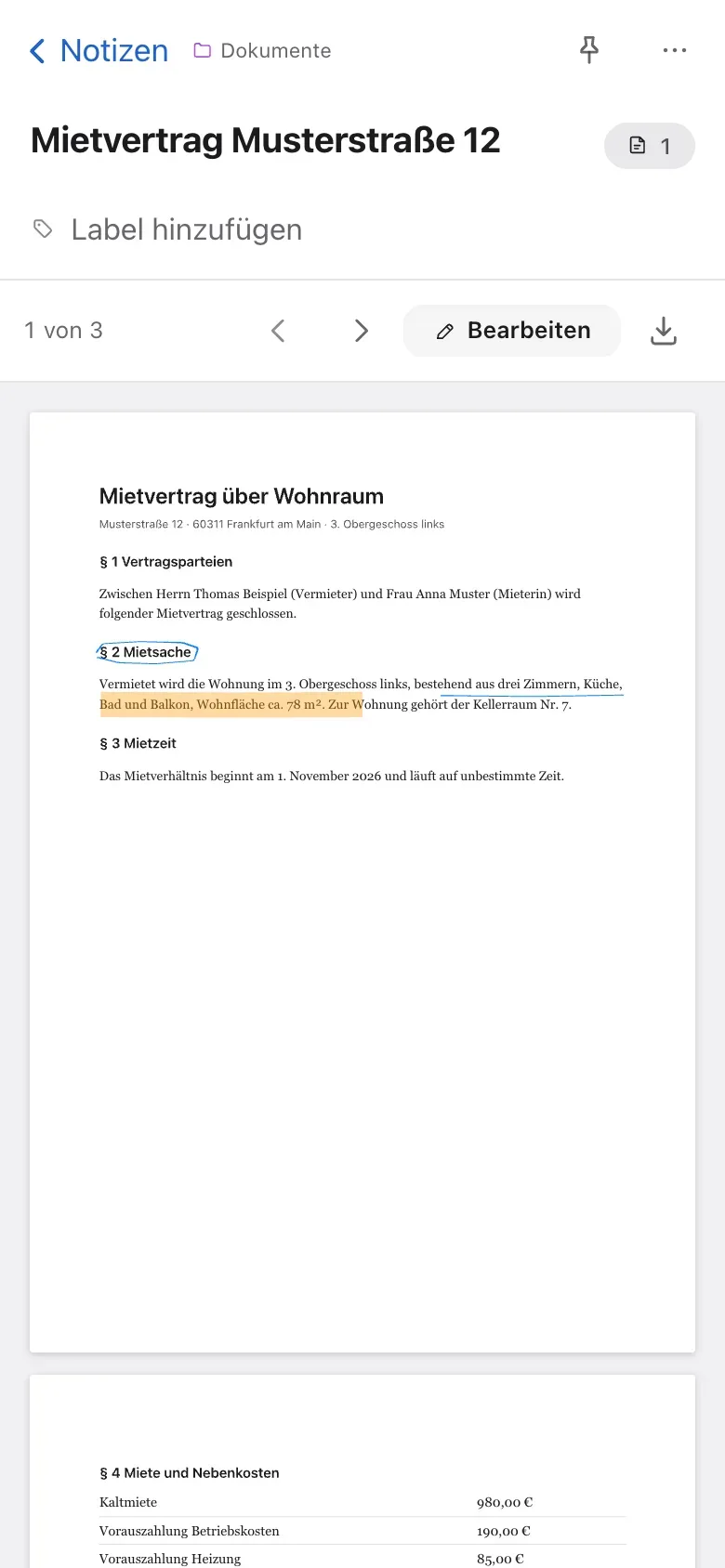
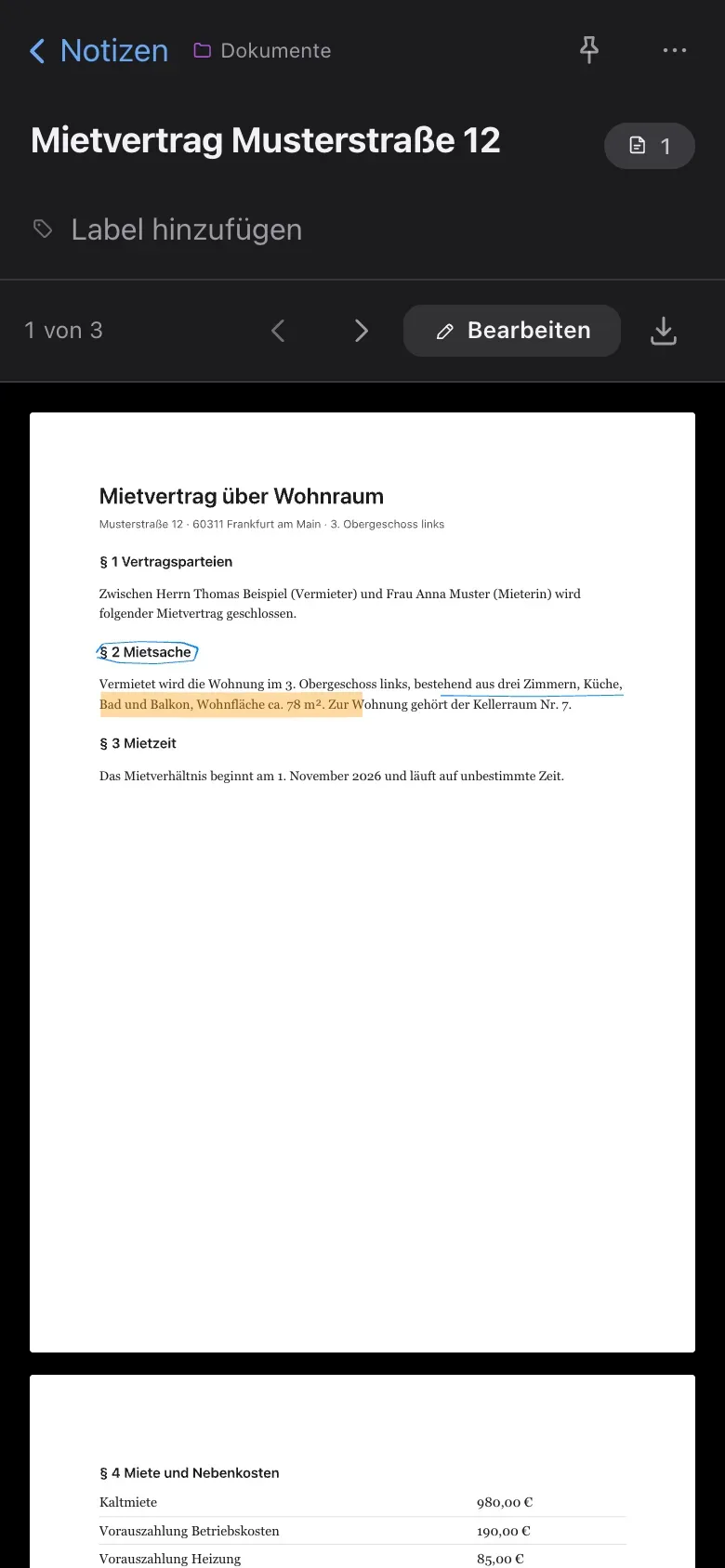
- On a phone, open the panel via the button at the top right next to the title

Download
The original stays untouched.
The download button offers two versions: the original PDF or the PDF with annotations – your strokes, highlights and comments are then drawn into a new file.
Tools
Everything you’d do on paper.
Pen, highlighter, eraser
“Edit” opens the writing view over the whole window. Pick your tool at the top.
- View only – scroll and zoom without writing by accident
- Eraser – removes whole strokes with one tap
- Comment – pins a small note to a spot on the page
- “Undo” takes back the last stroke on the current page
Apple Pencil and finger
With a stylus such as Apple Pencil, only the pencil writes – your finger keeps scrolling as usual, and a resting hand leaves no marks.
- Without a stylus, your finger writes
- On tablets and phones, zoom with two fingers
Search in PDFs
Search finds what’s in the PDF.
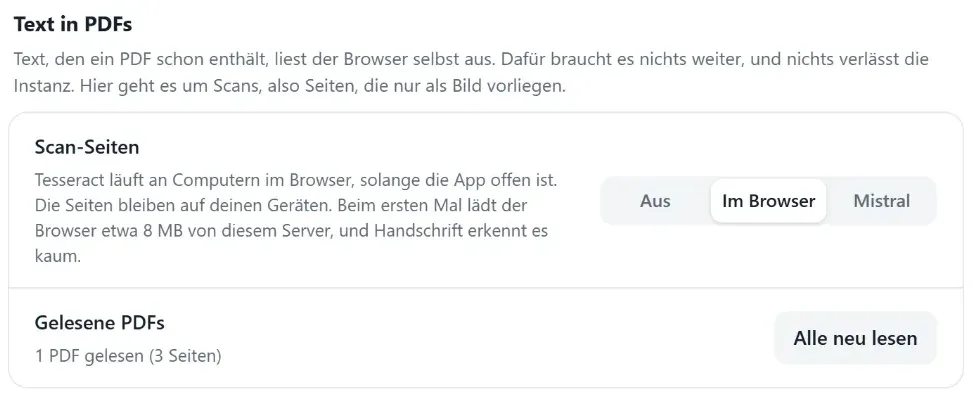
Your browser reads the text a PDF already contains. Text recognition for scans also runs locally in your browser by default: the pages stay on your device.
- Recognition runs on a computer while the app is open – a few seconds per page; phones and tablets leave it to a computer
- It hardly recognises handwriting
- If you like, Mistral OCR can read your scans instead: usually better, tables and handwriting too. That’s optional and needs your own key – PDFs with scanned pages then go there as a whole file
- The text that was read travels along in the ZIP backup
How to
From upload to download
-
1. Add a PDF
Via New → Upload PDF …, the upload button at the top of the list – or simply drop the file into the window. The PDF goes into the folder you have open.
-
2. Write on the PDF
Open the PDF and choose Edit. Pick tool, colour and stroke width at the top. Done or Esc closes the writing view.
-
3. Note your thoughts
Open the Notes on this PDF panel, type your thought into the quick field and confirm with Note (or ⌘ Enter).
-
4. Download
The download button above the document offers the original PDF or the PDF with annotations.
Questions
Questions about PDFs
Does annotating change my PDF?
No. The original on the server always stays untouched. When you download, you choose the original or a new file with your strokes, highlights and comments drawn in.
Do I need an Apple Pencil?
No. Without a stylus, your finger writes. With a stylus such as Apple Pencil, only the pencil writes – your finger keeps scrolling, and a resting hand leaves no marks.
Does search find text in PDFs?
Yes, once the PDF has been read. Your browser reads the text a PDF already contains. It recognises scans locally by default too, and the pages stay on your device. That runs on a computer while the app is open.
Do I have to use Mistral?
No, never. Recognition in the browser is the default. Mistral OCR is just an option for admins who’d rather have scans read there – with their own key. PDFs with scanned pages then go to Mistral as a whole file; PDFs from folders only certain people can see stay here, unless an admin explicitly allows it.
Does it work on phones and iPads?
Yes. Snowfox Notes runs in any modern browser and can be added to your home screen as an app. On iPad you can write on PDFs with Apple Pencil.

Curious? Give it a try.
Snowfox Notes is free and open source. Download it and put it on your own web space – or let us host it for you.
Runs on any web space with PHP 8.4. No SSH needed.