
Data & sharing
Work together. Lose nothing. Take it all with you.
Several accounts on one instance, folders for the right people, earlier versions of every note – and your data ready to take with you any time.
Share with others
One instance for everyone you work with.
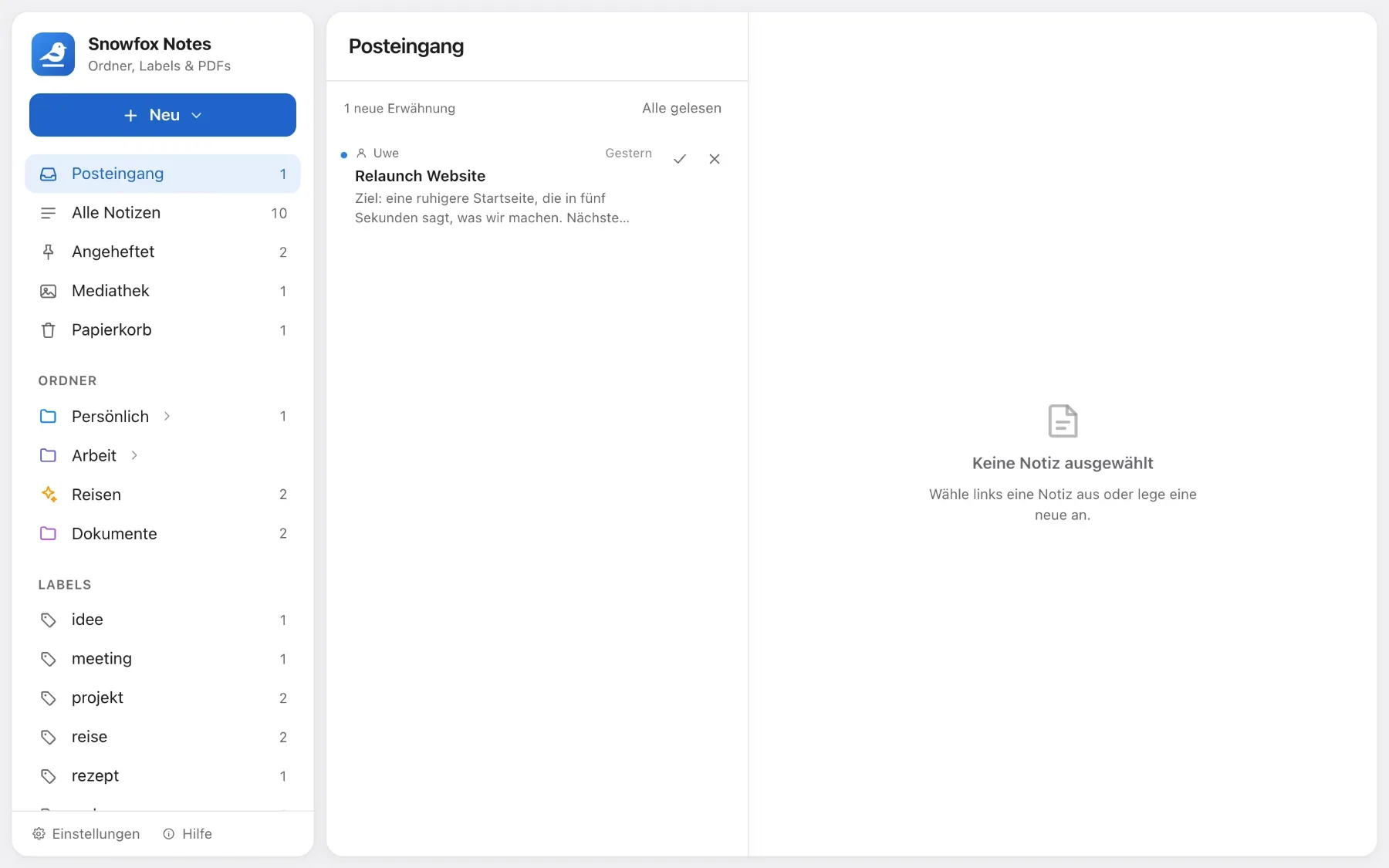
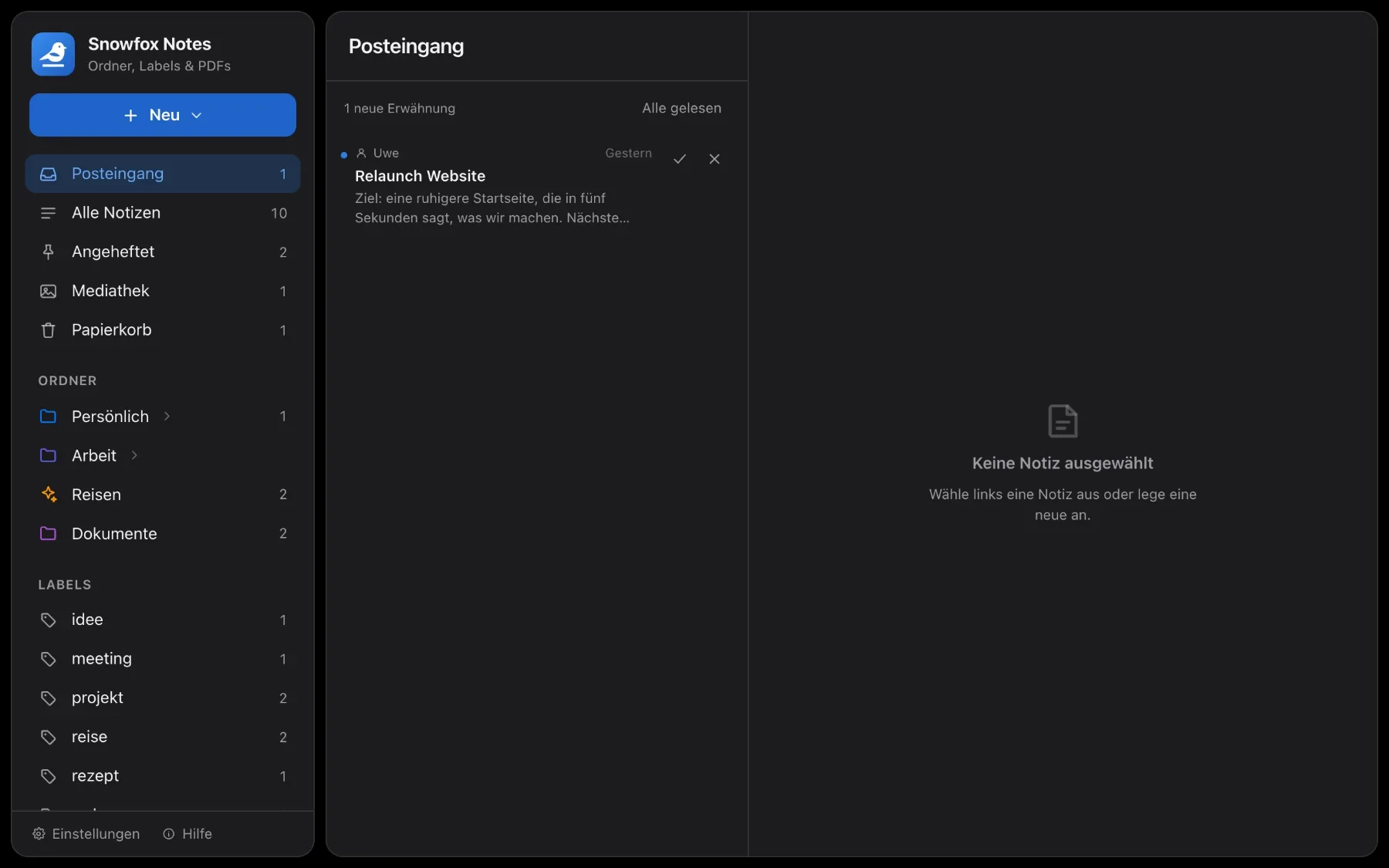
Several accounts on one instance, with roles for admins, writers and readers. Use @ to call someone into a note – they’ll find it in their inbox.
- Every top-level folder is open to everyone, just for you or for chosen people
- With chosen people, you pick who reads it and who edits it – for all subfolders and notes inside
- Create accounts yourself or invite people with an access code – no e-mail address needed
- Every note shows who created it and who edited it last
At a glance
Nothing gets lost.
- 25versions per note, kept by the app on its own
- 3 rolesadmin, user and reader – the server decides
- 7 · 30 · 90days or forever: how long the trash keeps things
- 1 ZIPholds the complete backup
Nothing gets lost
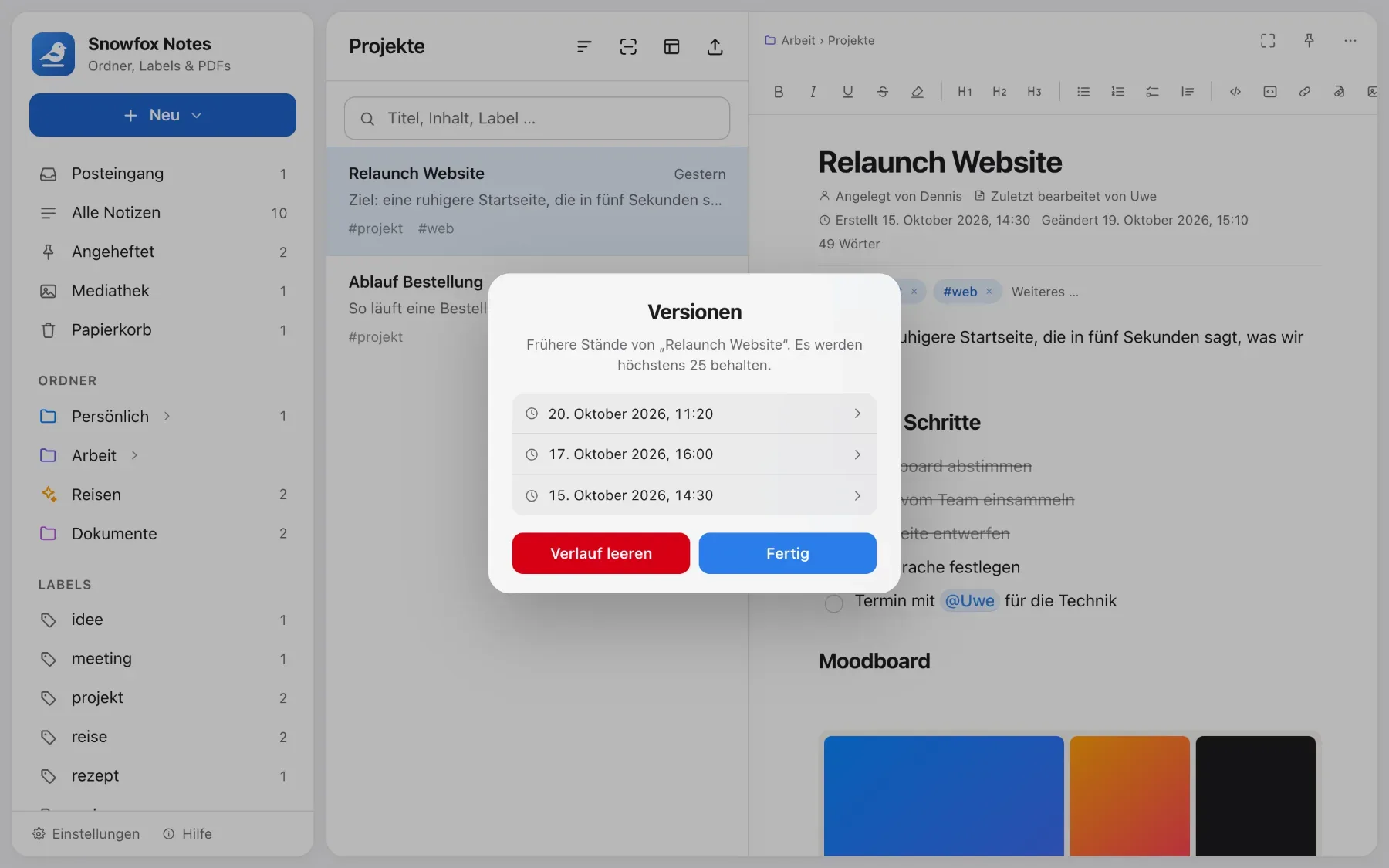
Earlier versions – all by themselves.
While you write, the app remembers earlier versions of a note without you lifting a finger – up to 25 per note. And deleted items go to the trash first.
- A version is saved after a three-minute pause in writing and right away on a large change
- Plus special versions: text overwritten while two people were writing, offline changes and the state before a restore
- Restore with one click – the current text becomes a version itself

Moving in and out
In and out, whenever you like.
Bring your notes over from Obsidian, Notion or Evernote and take them with you again any time. Folders, images, attachments, links, tags and dates come along.
- In: an Obsidian vault as a ZIP (or any folder of Markdown files), a Notion export and ENEX files from Evernote
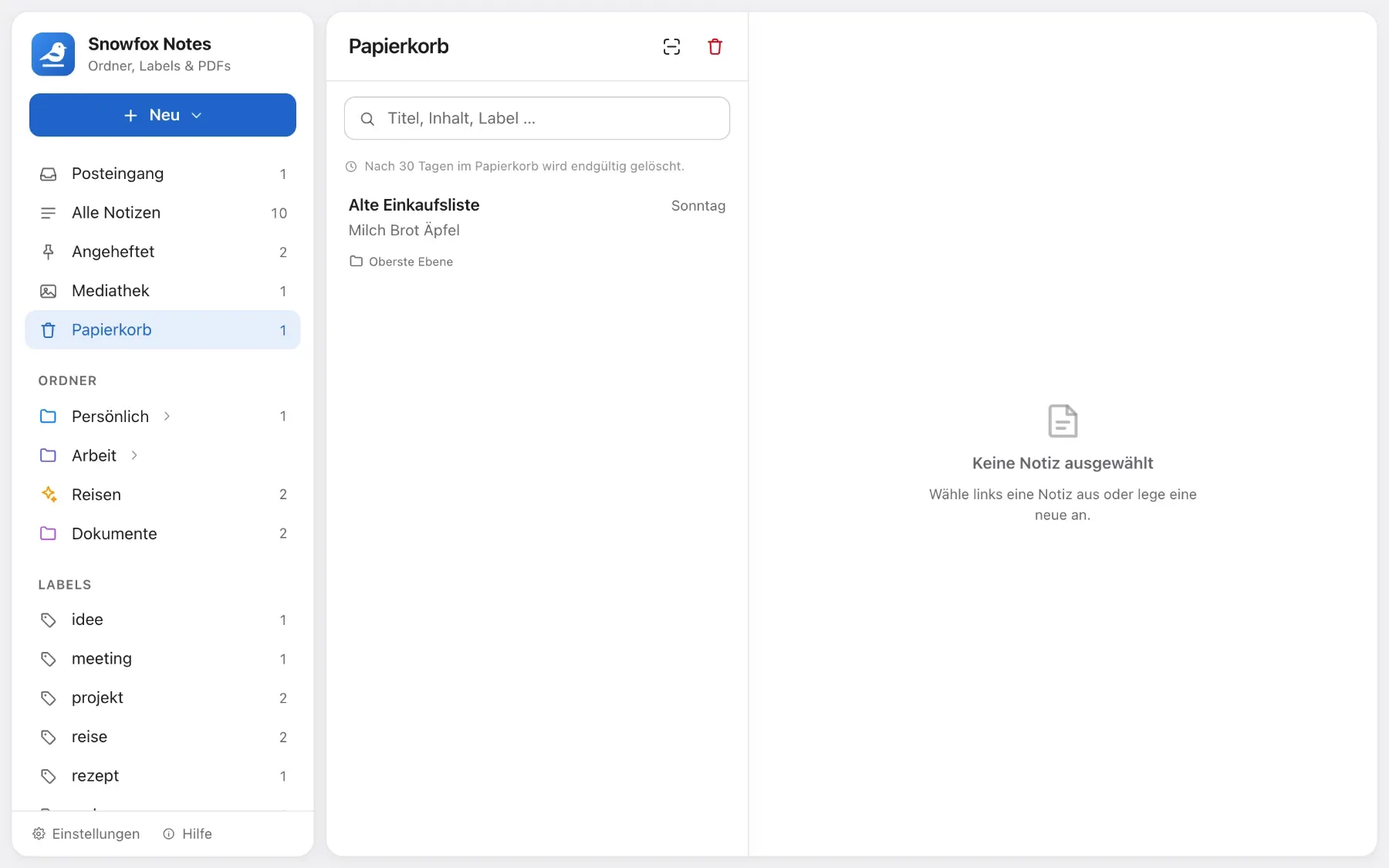
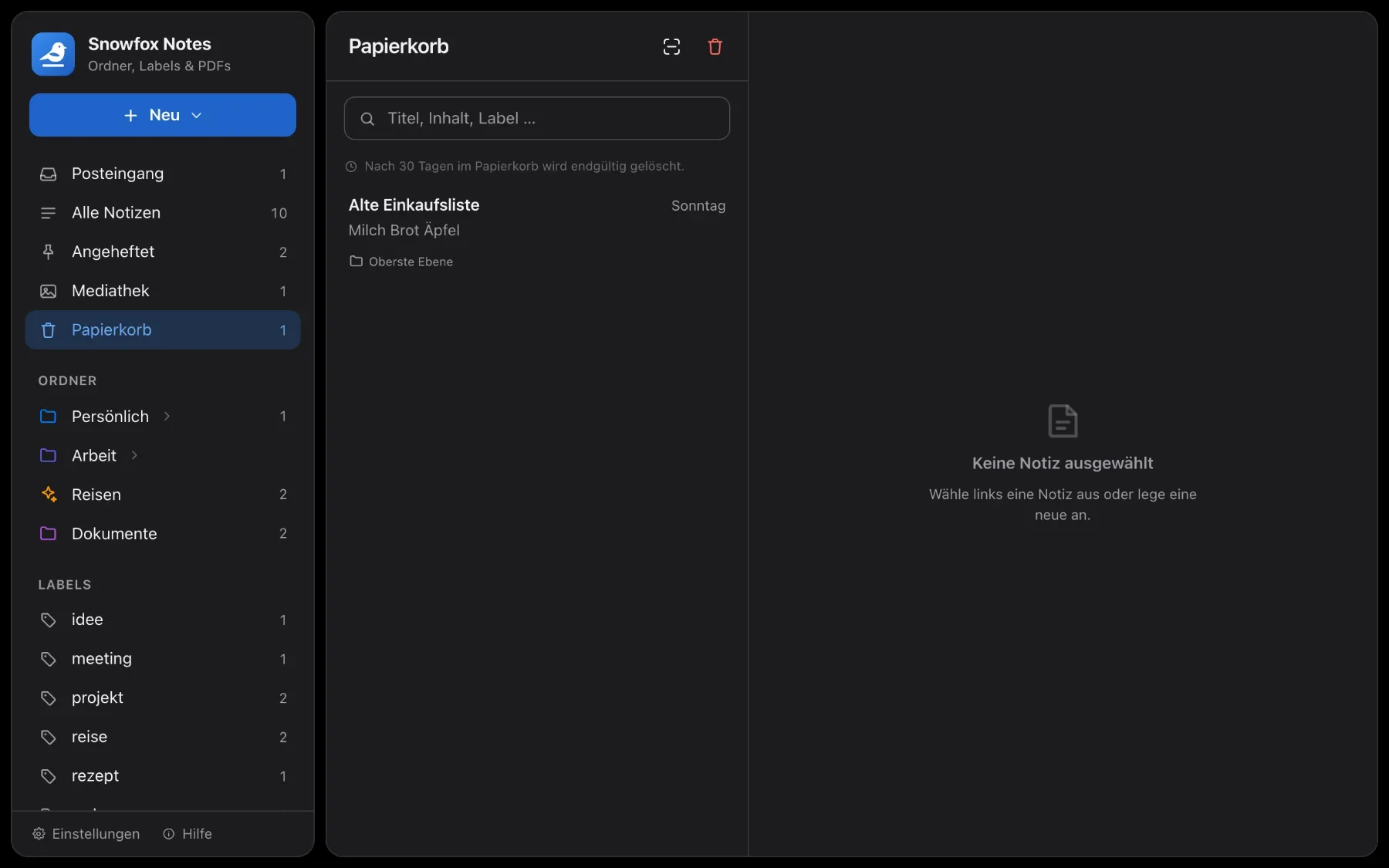
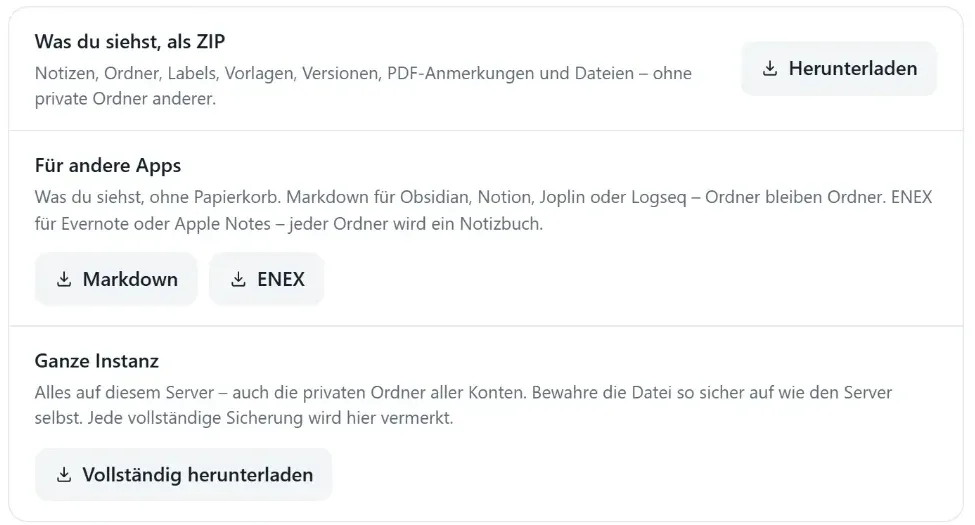
- Out: everything you can see, as a folder of Markdown files or as ENEX
- Obsidian, Notion, Joplin, Evernote and Apple Notes can read that
- The other apps don’t know the trash, versions or PDF annotations – that’s what the ZIP backup is for
Security
In safe hands.
Two-factor sign-in
After your password, Snowfox asks for a six-digit code from an authenticator app. You get ten recovery codes in case your phone is gone.
Automatic backups
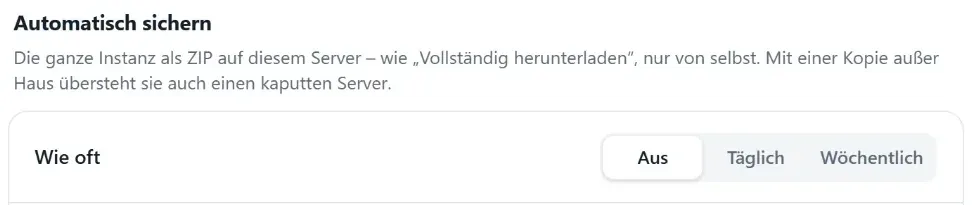
Admins have the whole instance stored daily or weekly as a ZIP on the server and choose how many backups to keep.
Off-site copy
A backup that only sits on the server won’t help if the server breaks. So if you like, every new backup also goes to a WebDAV folder, on Nextcloud for example.
Your data
Roles, trash, export and backup.
Who may do what, what happens to deleted items and how you take your notes with you.
Three roles
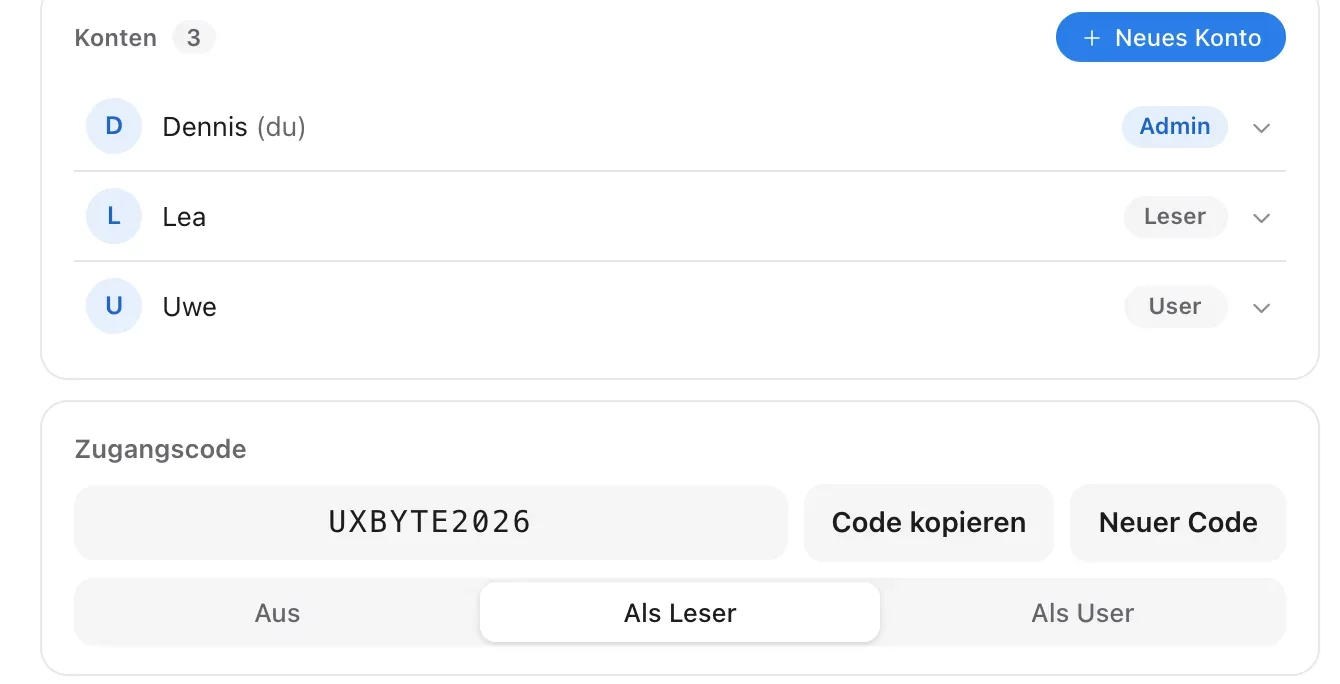
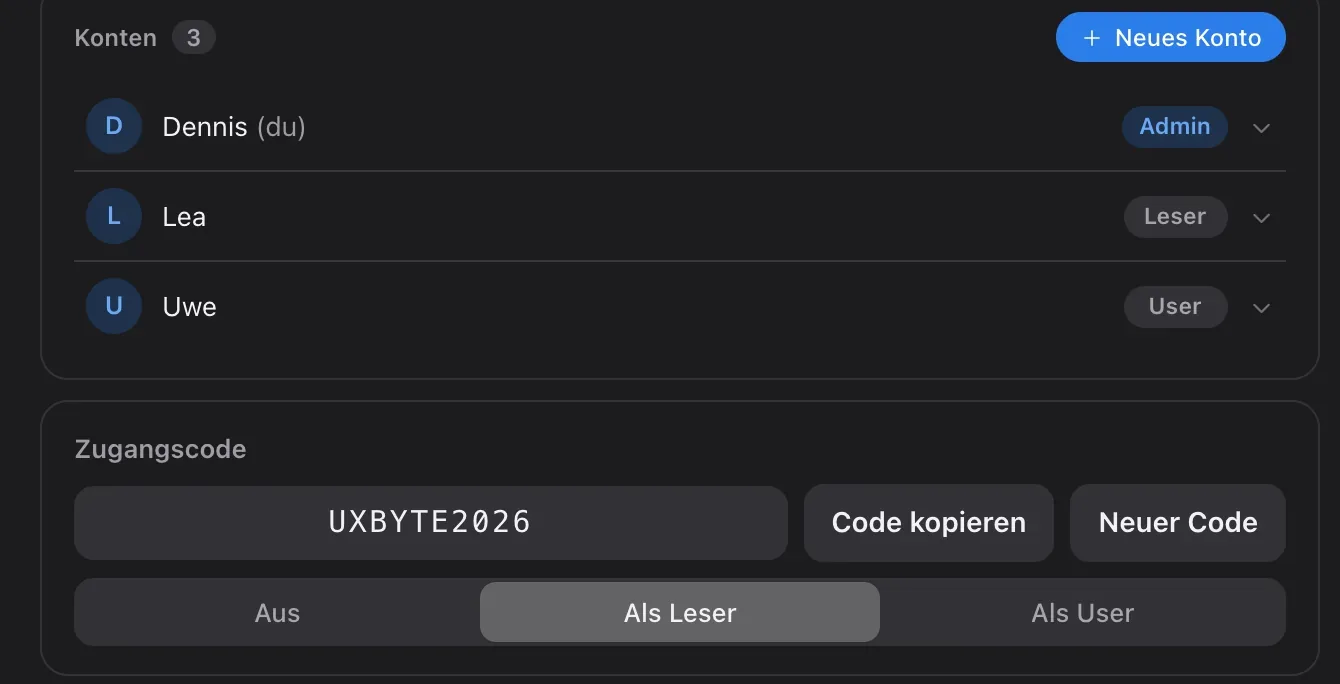
What someone may change depends on their role. The server decides – even a tampered browser can’t change anything.
- Admin: everything, including accounts, roles, updates and the trash period
- User: create and edit notes, folders, labels and PDFs, download the ZIP backup
- Reader: read, search, keep things offline, save and print single notes
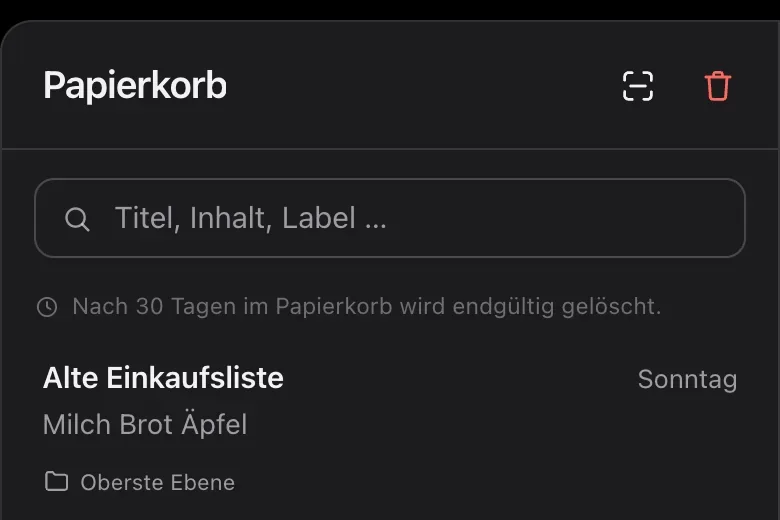
Trash
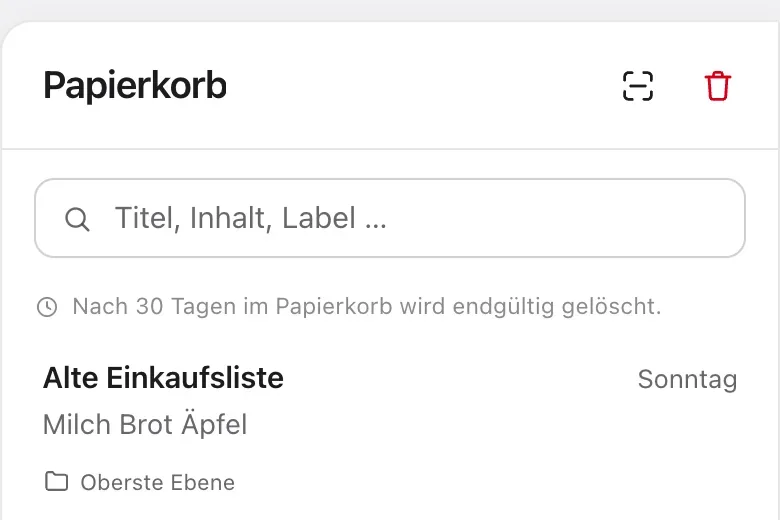
Deleted notes and folders go to the trash first. Admins decide how long it keeps things: 7, 30 or 90 days, or forever.
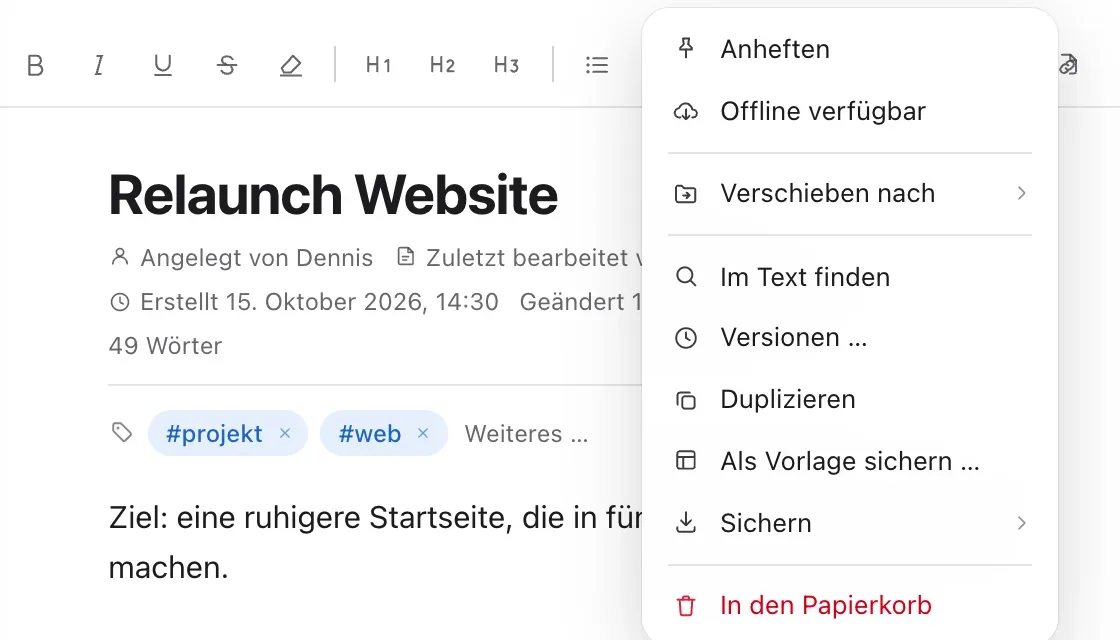
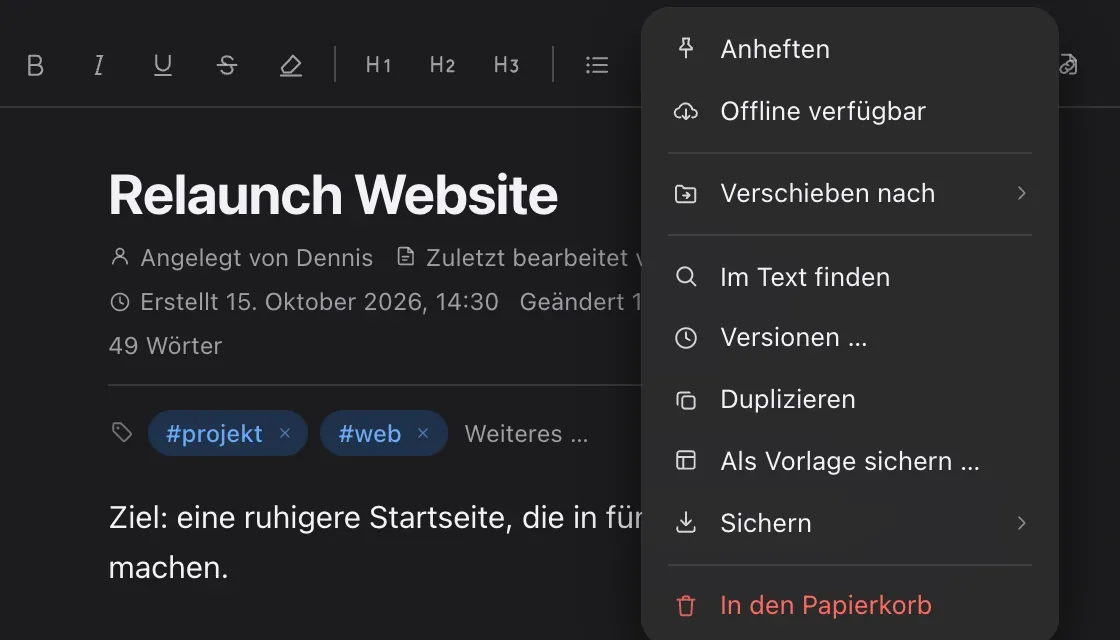
Single notes
Save any note as Markdown or print it as a PDF. Drop Markdown and text files into the window – they become notes in the open folder.
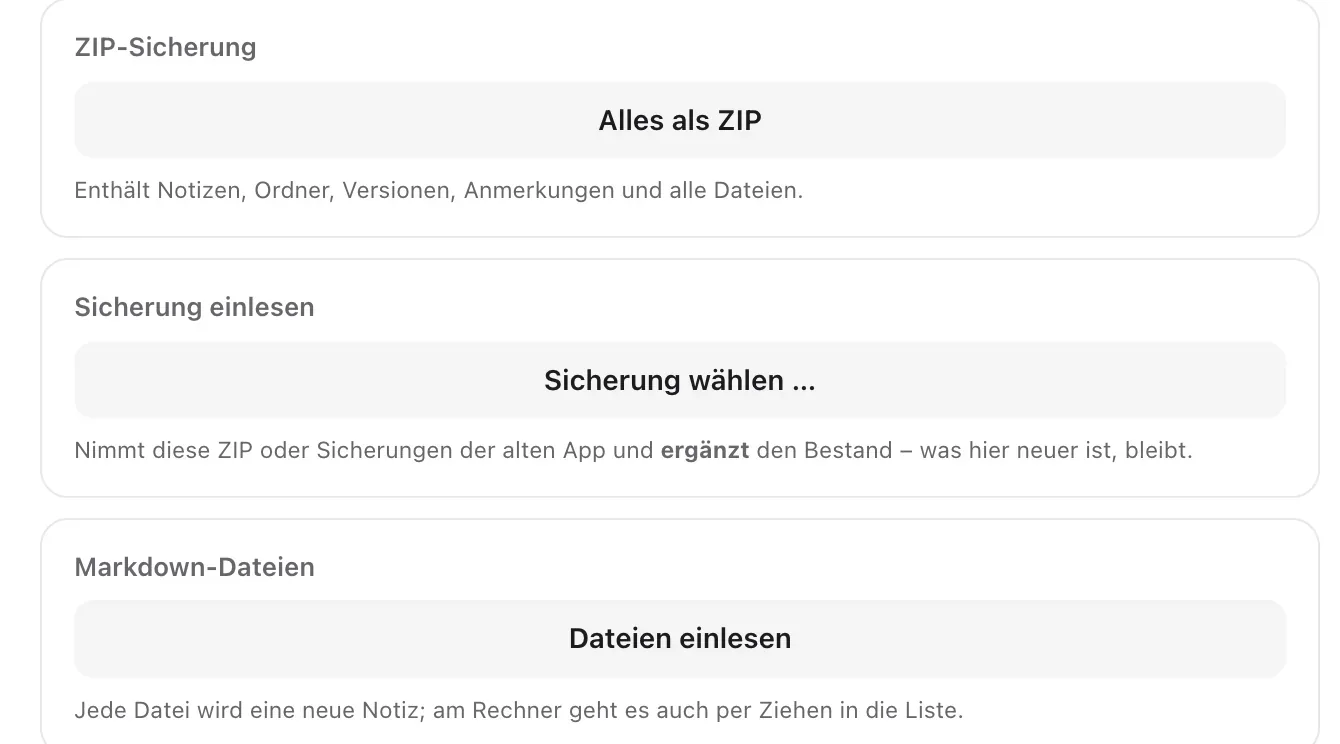
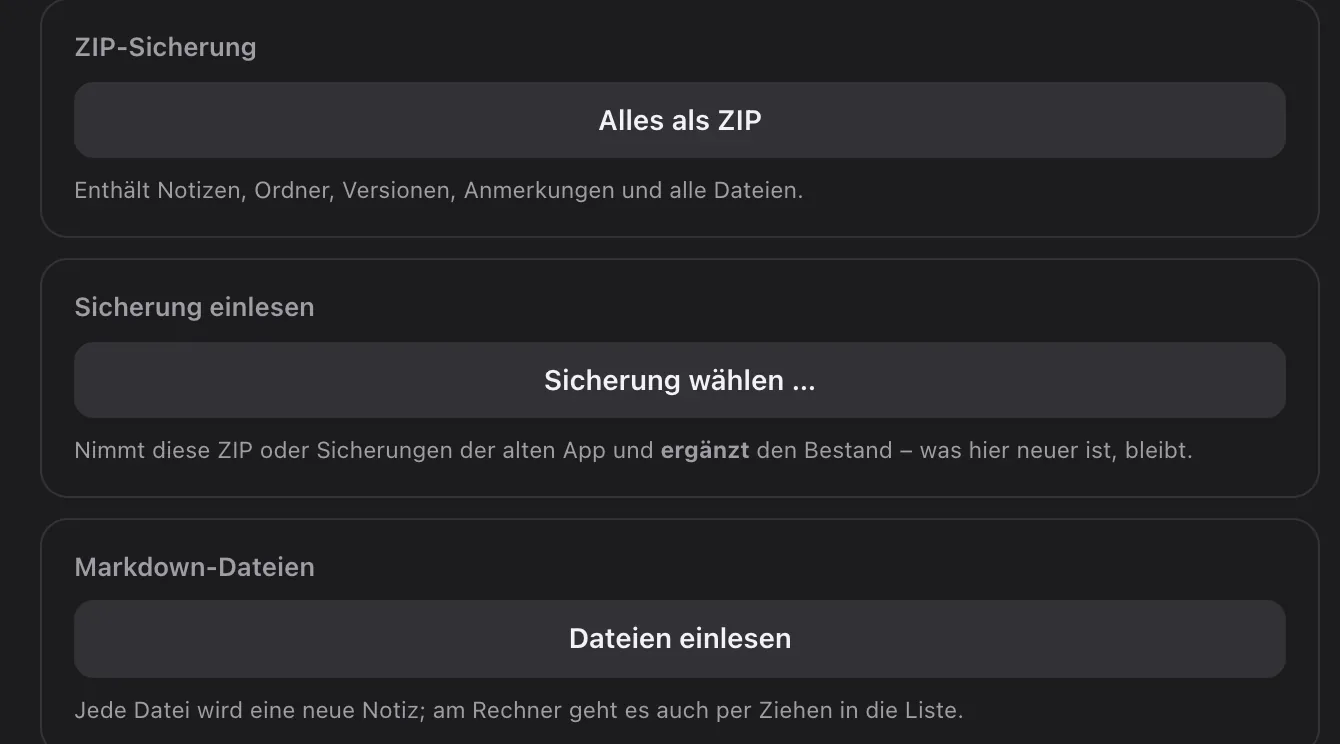
Complete backup
Notes, folders, labels, templates, versions, PDF annotations, recognised PDF text and all files in one ZIP. Imported on another instance, the library is added to, not replaced – that’s how you move.
How to
Five things to know
-
Bring someone in
As an admin, create a new account under Settings → Members – with a name, password and role. Or pass on the access code from Settings → Invites: with it, people create their own account via Create new account on the sign-in page. You also set the role they start with there.
-
Share a folder
Open the menu of a top-level folder and choose the sharing option: everyone on this instance, just you, or chosen people, each with read or write rights.
-
Move in from another app
- Export your notes there: Obsidian vault as a ZIP, Notion as Markdown & CSV, Evernote as ENEX.
- Upload them under Settings → Backup and import → From Obsidian, Notion or Evernote.
- Everything goes into a new folder that only you see at first.
-
Restore an earlier version
- In the note, open the ⋯ menu → Versions ….
- Click a version to view it.
- Restore this version brings it back – the current text becomes a version itself.
-
Back up everything
Settings → Backup and import → Everything as ZIP. Under Automatic backup, admins schedule it daily or weekly; under Off-site copy they add a WebDAV folder.
Questions
Questions about data and sharing
Can several people use it?
Yes. One instance has several accounts – as admins, writers or read-only. It’s built for a family or a small team, not for thousands of accounts. Create accounts yourself or invite people with an access code.
Do all accounts see the same notes?
Not necessarily. Every top-level folder is open to everyone on the instance, just for you or for chosen people, each with read or write rights. Notes outside any folder are always visible to everyone. What someone may do also depends on their role – admin, user or reader. Sharing decides who sees something in the app: whoever runs the server can technically reach all data.
Can I bring notes over from other apps?
Yes. Under Settings → Backup and import the app reads an Obsidian vault as a ZIP (or any folder of Markdown files), a Notion export and ENEX files from Evernote. Folders, images, attachments, links, tags and dates come along. Just drop single Markdown or text files into the window.
Can I take my notes with me?
Any time. Download everything you can see as a folder of Markdown files or as ENEX – Obsidian, Notion, Joplin, Evernote and Apple Notes can read that. Single notes come as Markdown or PDF, your whole library as a ZIP.
What can’t Snowfox Notes do?
Better you read it here than find out later. There’s no end-to-end encryption: notes are stored as plain text on the server, and whoever runs the server can read them. There’s no live co-editing: if two people write in the same note at the same moment, the last save wins and the overwritten text goes into the version history. And there are no native apps: Snowfox is a web app you can install on your device.
I deleted something by mistake. Now what?
Look in the trash – you can restore everything from there until the retention period runs out. If you only overwrote text, the note’s version history helps.
Can I move to another server later?
Yes. Download the ZIP backup, set up Snowfox Notes on the new web space and import the backup there. Notes, folders, files, versions and annotations come along; accounts you create anew.
Curious? Give it a try.
Snowfox Notes is free and open source. Download it and put it on your own web space – or let us host it for you.
Runs on any web space with PHP 8.4. No SSH needed.