
Calendar & tasks
Your notes know when something’s due.
Give a note a date or a task a due date right in the text. The calendar shows everything by day – whichever note it’s in.

The calendar
Month, week, day and agenda.
At the top you choose how the calendar shows things. Below it is what belongs to the chosen day.
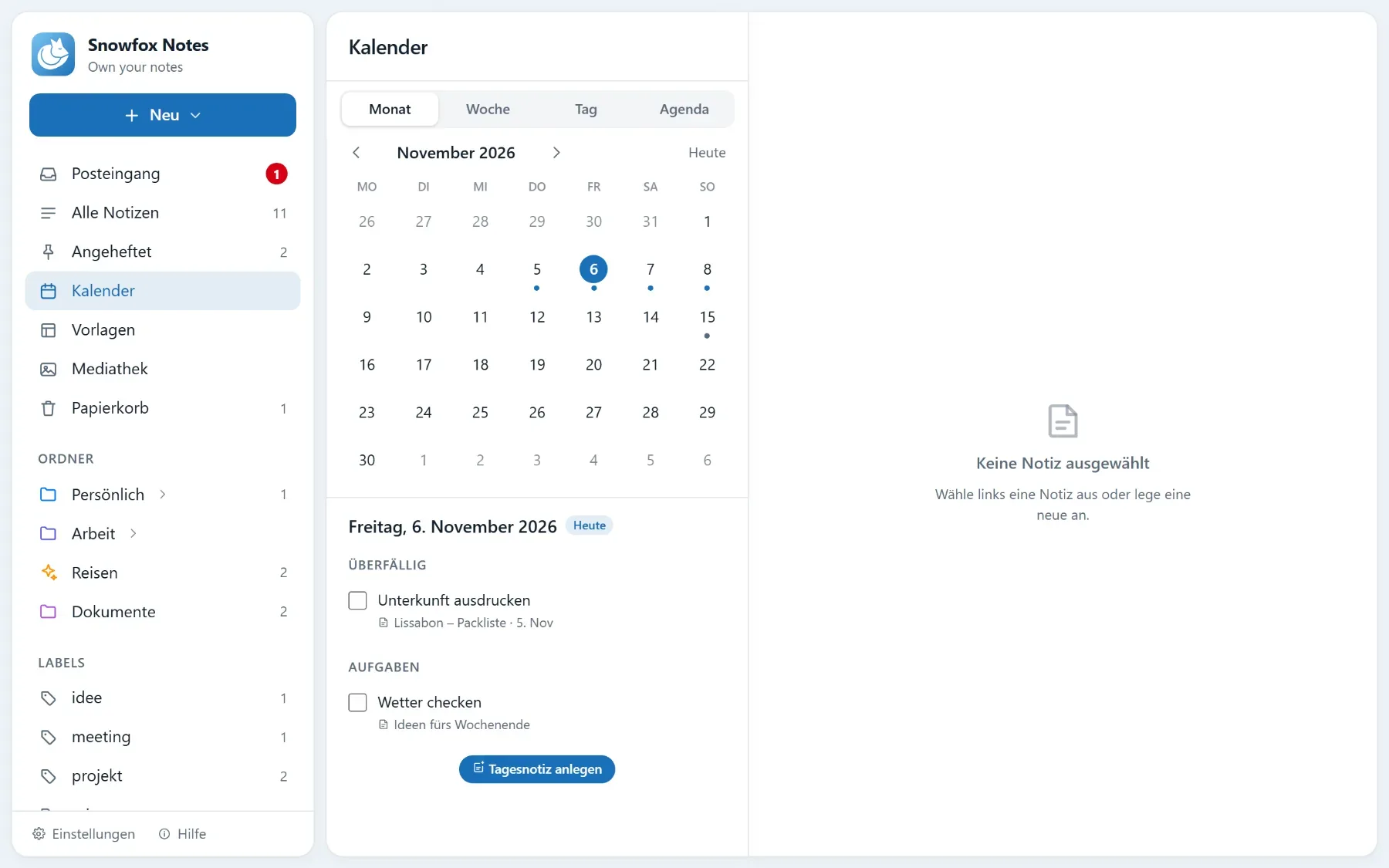
- Monthwith dots on the days that have something on
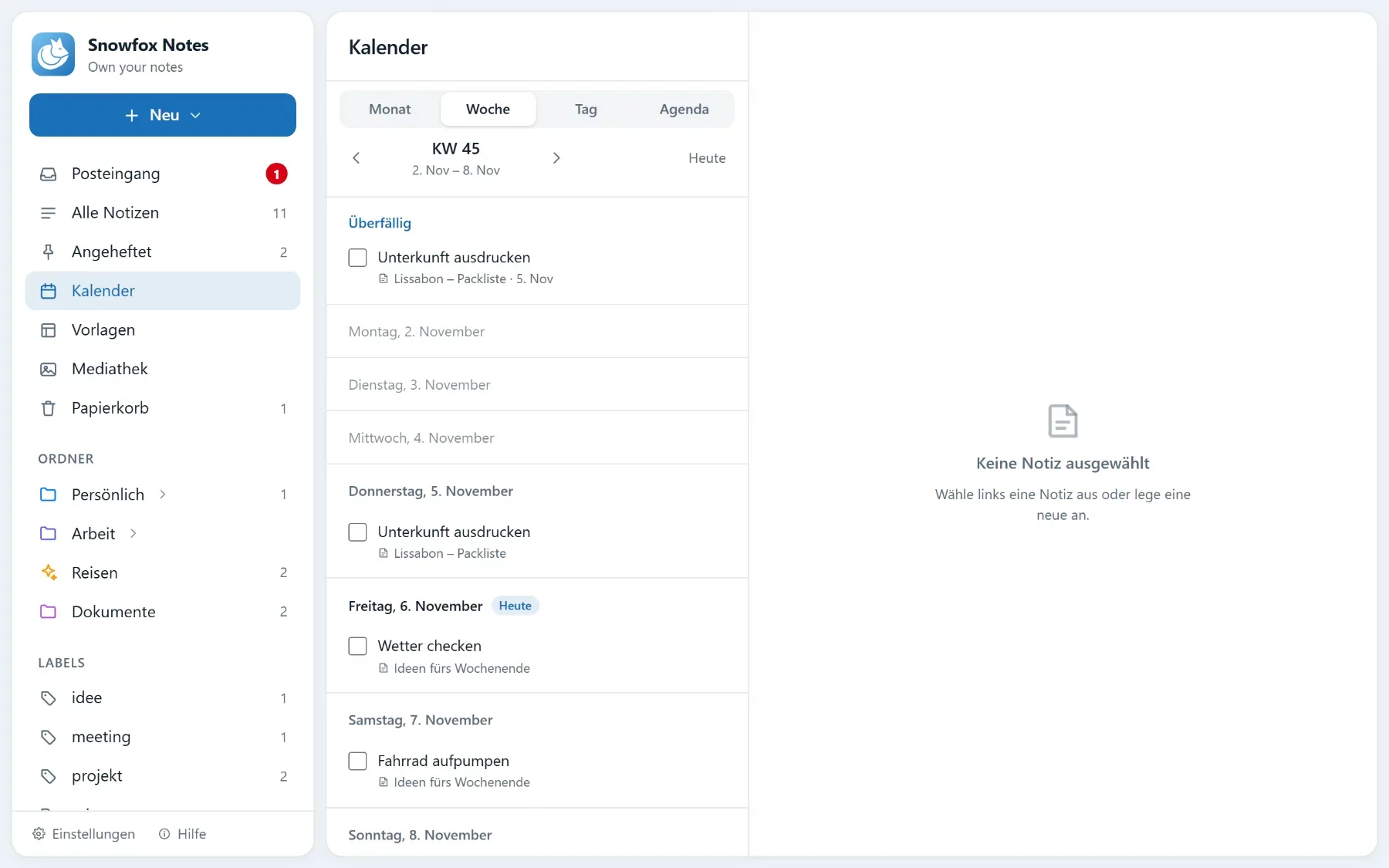
- Weekall seven days below each other
- Dayjust one day
- Agendathe next 30 days that have something on
Tasks with dates
The date sits right in the line.
Add the day to a task with a >. It then shows on that day in the calendar, whichever note it’s in, and you can tick it off there.
- No need to remember the date: type > in a task and the editor offers today, tomorrow, next Monday or in a week
- The calendar icon in the toolbar gives the line you’re in a date – if it’s not a task yet, it becomes one
- Click the marked date to move or remove it
- Open tasks from past days appear under “Overdue” on today
Plain text
The date belongs to the note.
A task with a date is still plain Markdown. Tick it off in the calendar and it’s ticked off in its note too.
Every day
What’s on today.
Daily notes, a reminder in the morning and templates that bring their dates along.
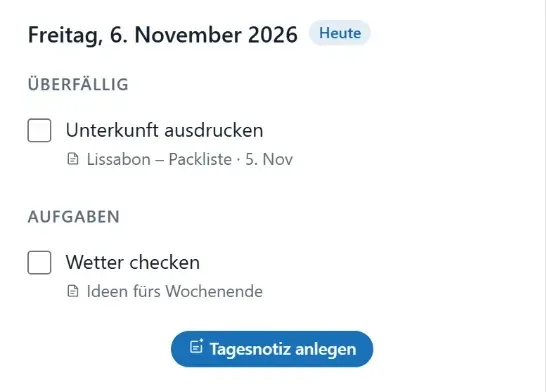
The chosen day
Below the month is what belongs to the chosen day: overdue tasks, the day’s tasks and notes with that date.
- Tick off tasks right in the calendar
- Click a day’s name to open it on its own
Daily notes
“Create daily note” creates a new note for that day. Under Settings → Notes and start you choose a template for it, such as “Journal”.
Reminder in the morning
At the time you pick, Snowfox tells you what’s on today: tasks due, notes with today’s date, anything new in your inbox. If nothing’s on, nothing comes.
Dates from templates
Templates bring their dates along. Create the moving-house template in the calendar on moving day and it spreads its tasks over the weeks before and the time after.
Stays in its folder
A date doesn’t move anything: the note stays in its folder and also shows up in the calendar.
How to
Four things to know
-
Give a note a date
Tap Date below the title and pick the day. The × next to it takes it away again.
-
Give a task a date
- Write a task – or choose /Task with a day.
- Type > and pick the day.
>todayor>tomorrowand a space become a date too.
-
Create a daily note
Pick a day in the calendar and click Create daily note. New → Note gives it the day too while the calendar is open.
-
Switch on the reminder
Under Settings → Notes and start you switch on the morning message and pick the time. Send now shows you straight away what it looks like.
Questions
Questions about calendar and tasks
Does a date move my note?
No. The note stays in its folder and also shows up in the calendar.
How does a task get a date?
Write it into the line with a > in front, such as “Send the offer >2026-11-12”. Type > in a task and the editor offers days. The task then shows on that day in the calendar, whichever note it’s in.
How does the morning reminder reach me?
By e-mail if your account has a confirmed address, and as a push on every device you switch it on for. On iPhone and iPad, push only works once Snowfox is on your home screen. If nothing’s on, nothing comes.

Curious? Give it a try.
Snowfox Notes is free and open source. Download it and put it on your own web space – or let us host it for you.
Runs on any web space with PHP 8.4. No SSH needed.